Install DentalPi on your own server
The Windows installer sets up the whole system on a computer in your office: database, login, file storage, the app, automatic HTTPS and a nightly backup. Patient data never leaves the building.
What you need
- A Windows 10 or 11 Pro computer that stays on, with an administrator account.
- Docker Desktop, installed and running.
- Node.js LTS.
- A domain name for the practice (e.g. clinic.example.com) with its DNS A record pointing at your office's public IP address.
- Ports 80 and 443 forwarded from your router to this computer. Both are needed for the free automatic HTTPS certificate.
Install
- 1Download the installer and run it. Windows asks for administrator permission: click Yes.
- 2Keep the suggested folder (C:\Program Files (x86)\DentalPi) and click Next.
- 3Fill in the pages below.
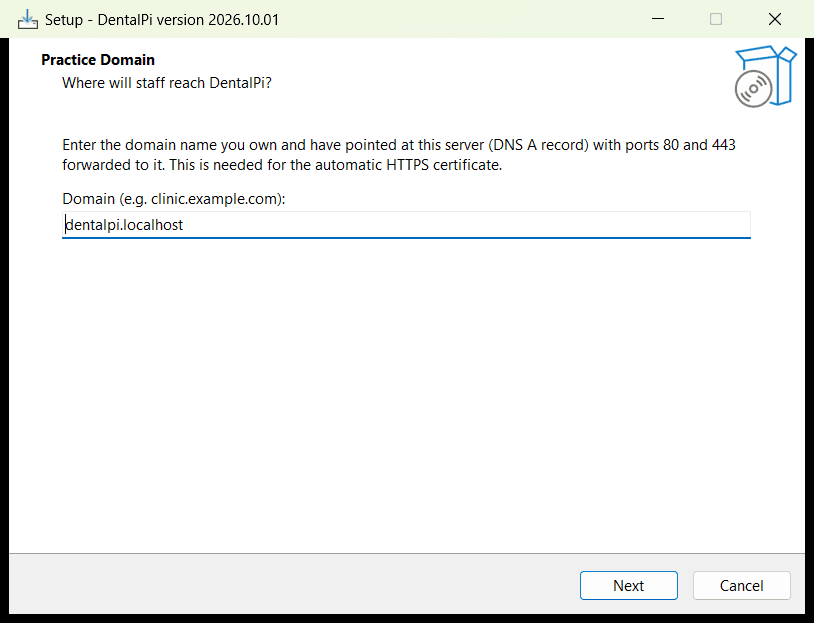
Practice domain
The address staff will use, e.g. clinic.example.com. Type just the name: no https:// and no slash. Its DNS A record must point at this server, with ports 80 and 443 forwarded to it, so DentalPi can get its HTTPS certificate.
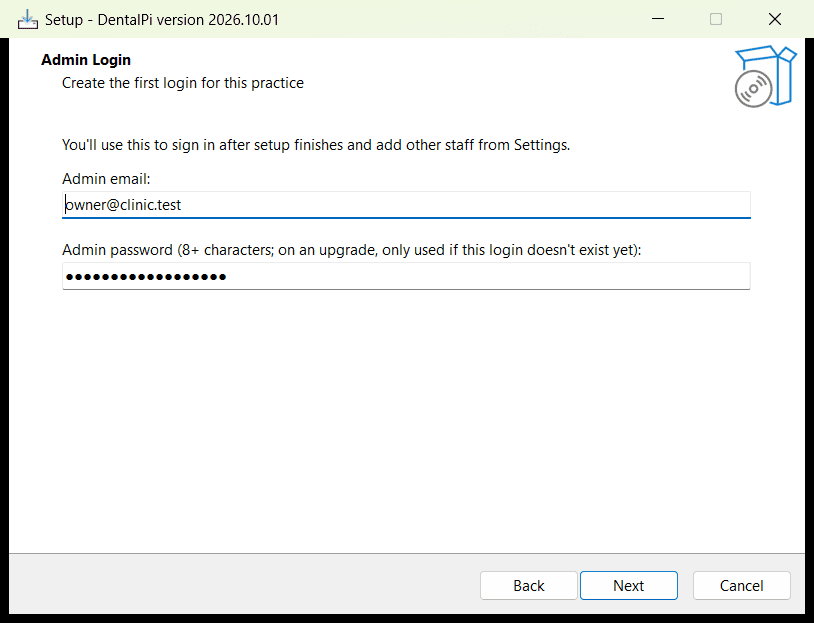
Admin login
The first login for the practice. You add everyone else later from Settings → Users.
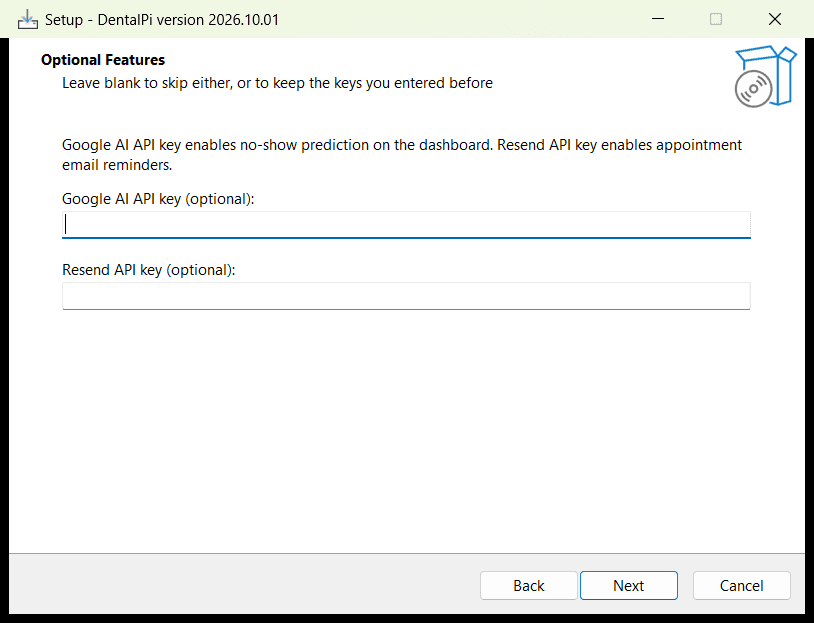
Optional features
A Google AI key turns on no-show prediction, and a Resend key turns on appointment email reminders. Both can be added later.
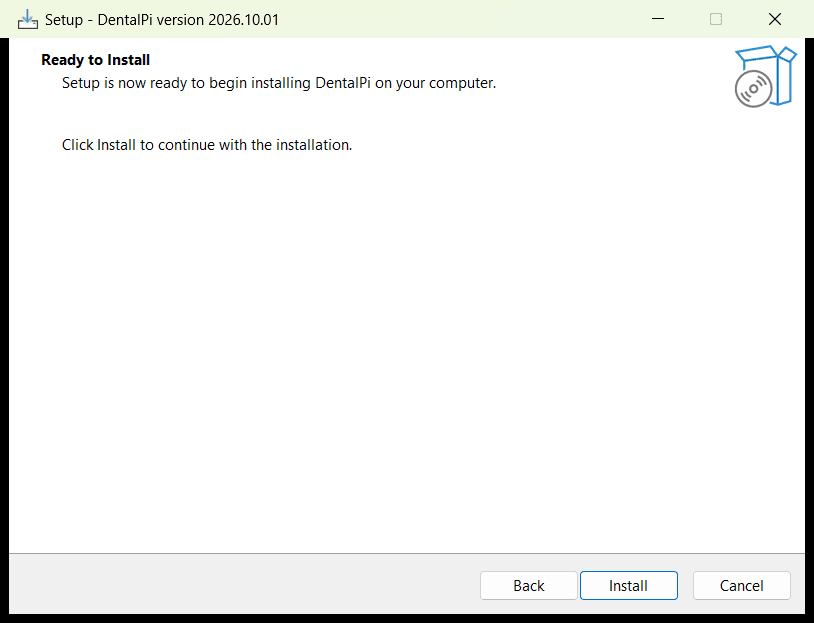
Install
Click Install. A PowerShell window opens and shows progress while Docker downloads and builds everything. The first install takes about 10–15 minutes.
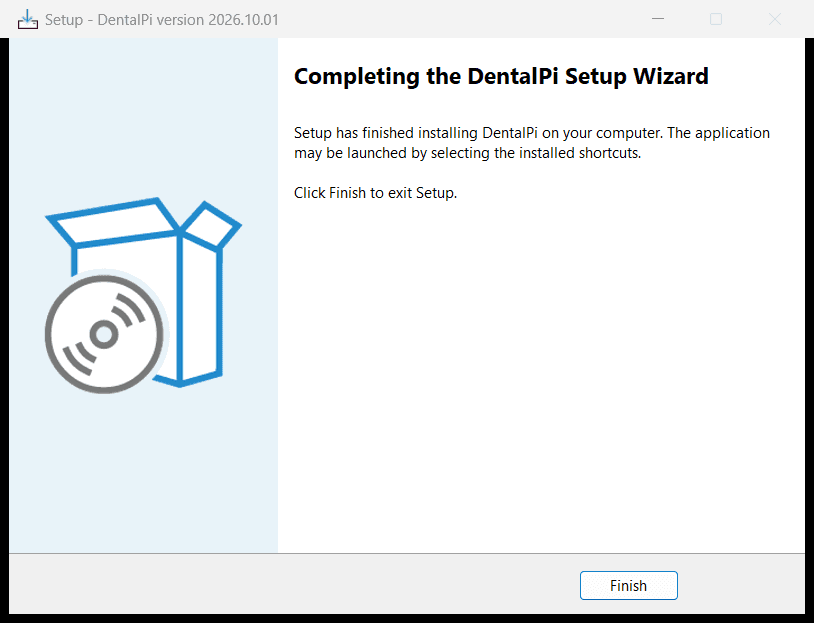
Done
Click Finish. Your browser opens your domain; HTTPS can take a minute on first start.
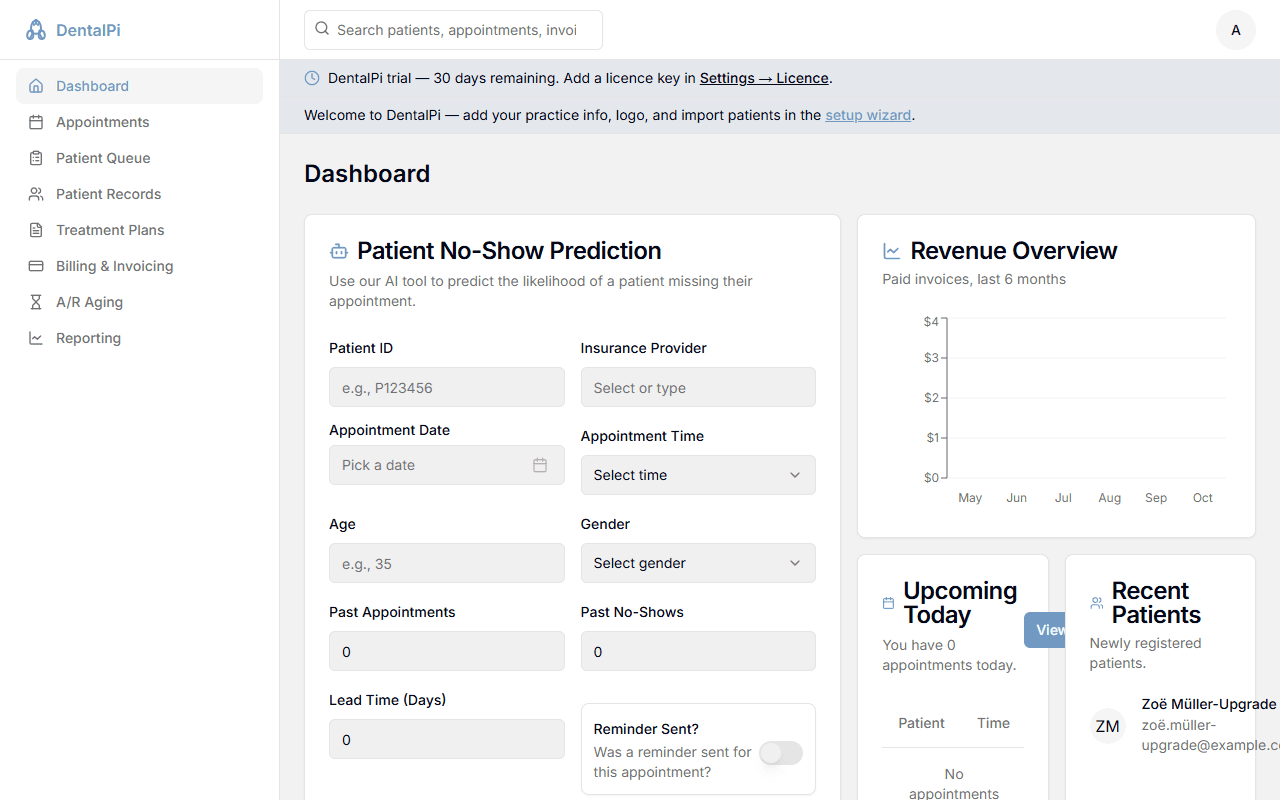
- 4Sign in with the admin email and password from step 3. A banner links to the setup wizard, where you enter practice details, upload your logo and import patients. New installs run as a 30-day trial; add your licence key in Settings → Licence.
A backup runs every night at 2:00 AM into C:\Program Files (x86)\DentalPi\deploy\backups and the last 30 days are kept. Copy that folder offsite regularly, to an encrypted drive or an encrypted cloud folder: a backup on the same machine won't survive a disk failure, theft or ransomware.
Upgrade to a new version
Upgrading keeps all patients, charts, invoices, files, logins and settings. New database changes are applied automatically.
- 1Take a backup first: open PowerShell as administrator and run
cd "C:\Program Files (x86)\DentalPi\deploy"
.\backup.ps1
- 2Download the latest DentalPiSetup.exe and run it. It finds your existing install, so there's no folder to choose.
- 3Keep the same domain and admin email. The password field is only used if that login doesn't exist yet, so any 8+ characters will do. Leave the API keys blank to keep the ones you entered before.
- 4Click Install. DentalPi is unavailable for the few minutes it takes to rebuild and restart, so upgrade outside office hours.
Installed before October 2026? On this first upgrade the wizard can't fill in your domain and email yet, so type them as before. And if an older installer said it finished but DentalPi never started, it hit a bug in the Docker check that this version fixes: just run the new installer.
Move to a new server
Moving to new hardware, or recovering after the old one died, uses a backup folder.
- 1On the old server (if it still runs), take a backup as above. Otherwise use your latest offsite copy.
- 2Install DentalPi on the new server. Any admin password works; the restore brings back everyone's existing logins.
- 3Copy the backup folder (e.g. dentalpi-20261001-020000) onto the new server.
- 4In PowerShell as administrator:
cd "C:\Program Files (x86)\DentalPi\deploy"
.\restore.ps1 -Backup "D:\dentalpi-20261001-020000"
Type RESTORE when asked. It replaces everything on the new server with the backup: patients, charts, billing, X-rays and logins. A backup from an older version is upgraded automatically. - 5Point your domain's DNS and the router's port forwarding at the new server.
Practise a restore onto a spare computer once a year. A backup you've never restored is only a hope.
Coming from Open Dental
- 1In Open Dental, export your patient list as CSV (Reports → Patient List, or a query export).
- 2In DentalPi, open the setup wizard from the banner (or go to /setup) and choose Import from Open Dental.
- 3Upload the CSV. Names, dates of birth, contact details and addresses are imported, and you get a summary of anything skipped.
Troubleshooting
- Setup failed. The PowerShell window stays open with the reason, and the full output is saved in C:\Program Files (x86)\DentalPi\deploy\install.log. Fix the cause (usually Docker Desktop not running), then run Start → DentalPi → Reconfigure DentalPi or the installer again. Re-running is always safe.
- The site doesn't load over HTTPS. Check that your domain's A record points at the office's public IP and that ports 80 and 443 reach this computer. The certificate is issued automatically once both are right.
- Check what's running. In C:\Program Files (x86)\DentalPi\deploy, run docker compose ps, or docker compose logs app for the app's log.